Ports

Available now · Version 1.0
See what’s using your ports.
Ports is a native macOS menu bar utility for seeing which TCP and UDP ports are in use, which process owns them, and what is listening on your Mac.
Version 1.0 · Build 1 · Requires macOS 14 or later.
Release notes on GitHub · DMG download
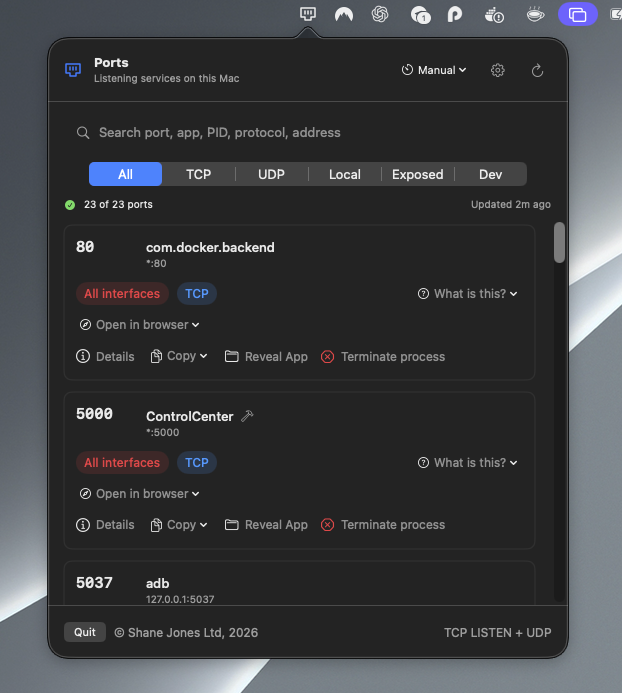
From port number to useful context.
Ports brings listening TCP services and UDP sockets into one searchable view. Keep it close at hand while running local servers, debugging development tools or checking what is listening on your Mac.
- Open the menu bar panel. Scan the local ports and processes on your Mac.
- Narrow the list. Search for a port or process, then use filters to focus the results.
- Inspect and investigate. Open Details, reveal the owning app, open a local web service or copy a diagnostic summary.
Find the port. Understand the process.
Search across the details
Look up a port number, process name, PID, protocol, user, address or command. Exact port-number matches appear first, with broader matches still available below.
Focus your view
Filter TCP, UDP, local-only, all-interface and common development ports. Interface labels describe where a service is bound; they do not prove it is reachable from the internet.
Inspect details inline
Expand Details to inspect the process ID, user, command, full executable path, address and current state without leaving the list.
Reveal the owning app
Reveal App opens Finder with the owning app selected, or the executable for tools such as Node. Go from an unfamiliar process name to its location on your Mac.
Open a local web service
For local TCP ports, choose HTTP or HTTPS under Open in browser. Jump straight to a development server without typing its address.
Copy what you need
Copy a port number, command, diagnostic summary or AI prompt for a terminal, issue, support message or browser-based question.
Refresh on your terms
Refresh manually or choose an automatic interval. Settings lets you open Ports at startup and choose your preferred AI provider.
Know what you’re running
Settings shows the installed version and build number. Its Updates link brings you back to this page to check for future releases.
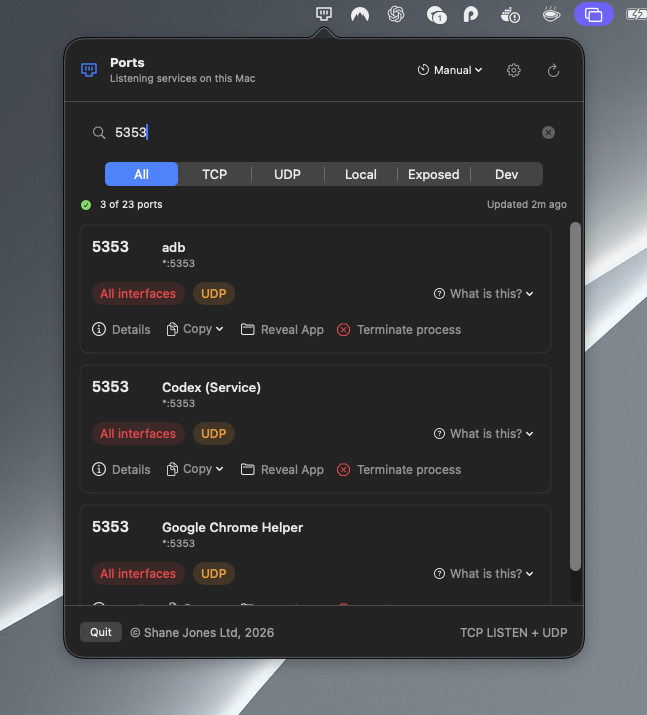
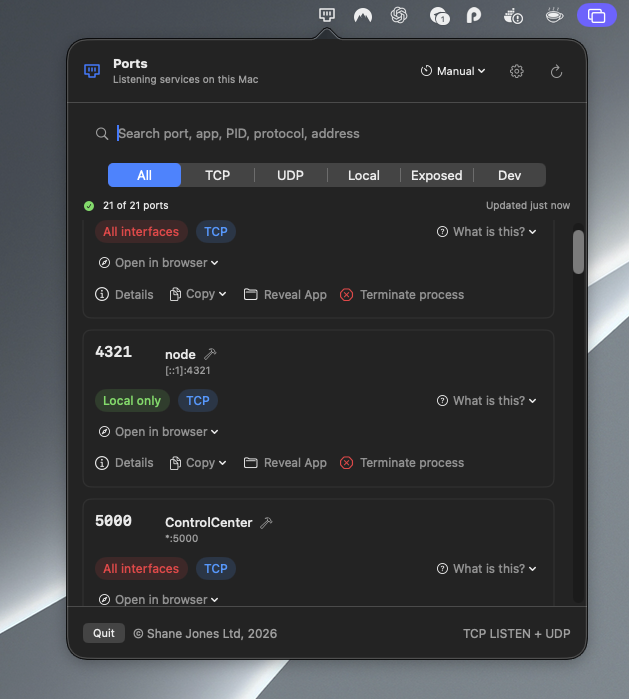
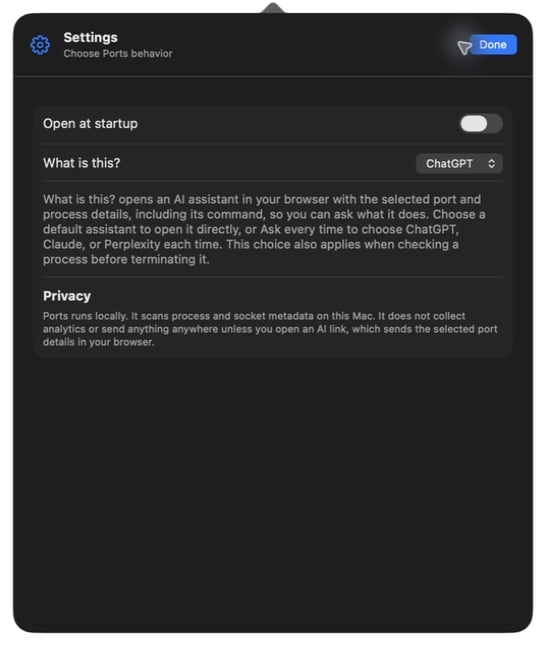
Understand an unfamiliar port.
Use “What is this?” to open a prepared question in ChatGPT, Claude or Perplexity in your browser. AI assistance is optional; inspecting ports does not require an AI account. The provider may require an account or subscription.
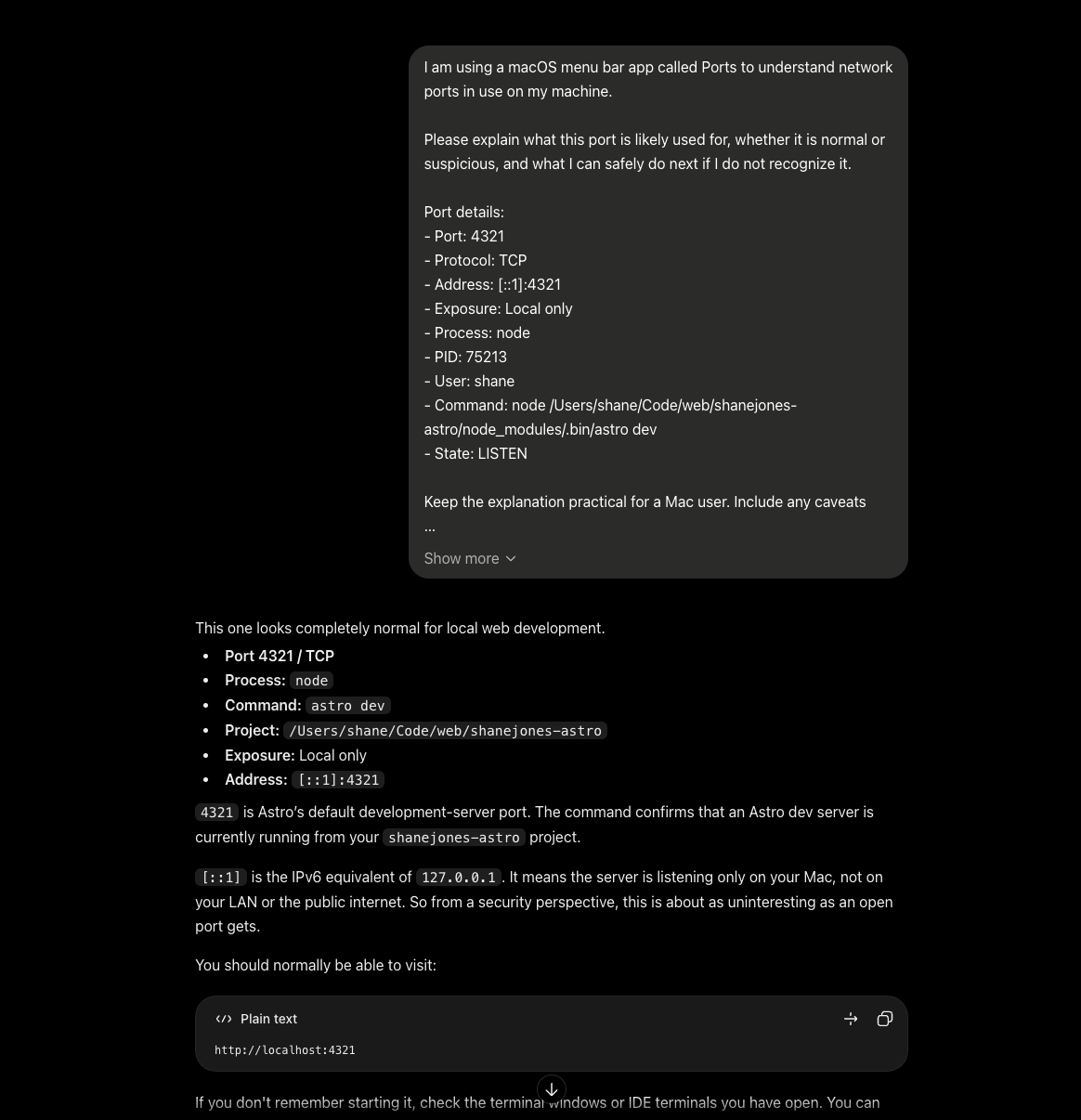
The selected diagnostic details are sent in the URL when the browser opens, before you press Send. Commands can contain private paths or credentials, and browser history or synchronisation may retain the URL. The current app does not preview or automatically redact the prompt. Only use this option for information you are comfortable sharing.
Local scanning. Your choice to share.
Ports scans port and process information locally on your Mac. The core port view needs no Ports account or AI account. Opening an AI question shares selected diagnostic information with your chosen provider; it is always optional.
Read about local scanning and AI sharing, or get help with Ports.
Get Ports for your Mac.
Check this page for future Ports releases. The Updates link in Settings opens this website so you can check for and download a newer version when one is available.
Version 1.0 · Build 1 · Requires macOS 14 or later.
Release notes on GitHub · DMG download